
Retiring a Container
When a container reaches the end of it's service life either due to breakage or soiling, it's time to remove it from the Reusables system which helps to inform future reorders.
Retire Containers in a Batch or Individually
This can be done on either a computer or mobile device.
Access the batch scanning app here; https://scan.rsbls.com
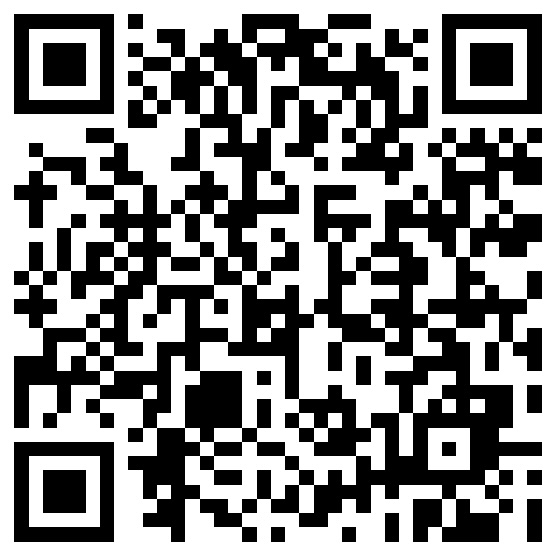
Or scan this code on your mobile phone (this feature works best on iPhones).
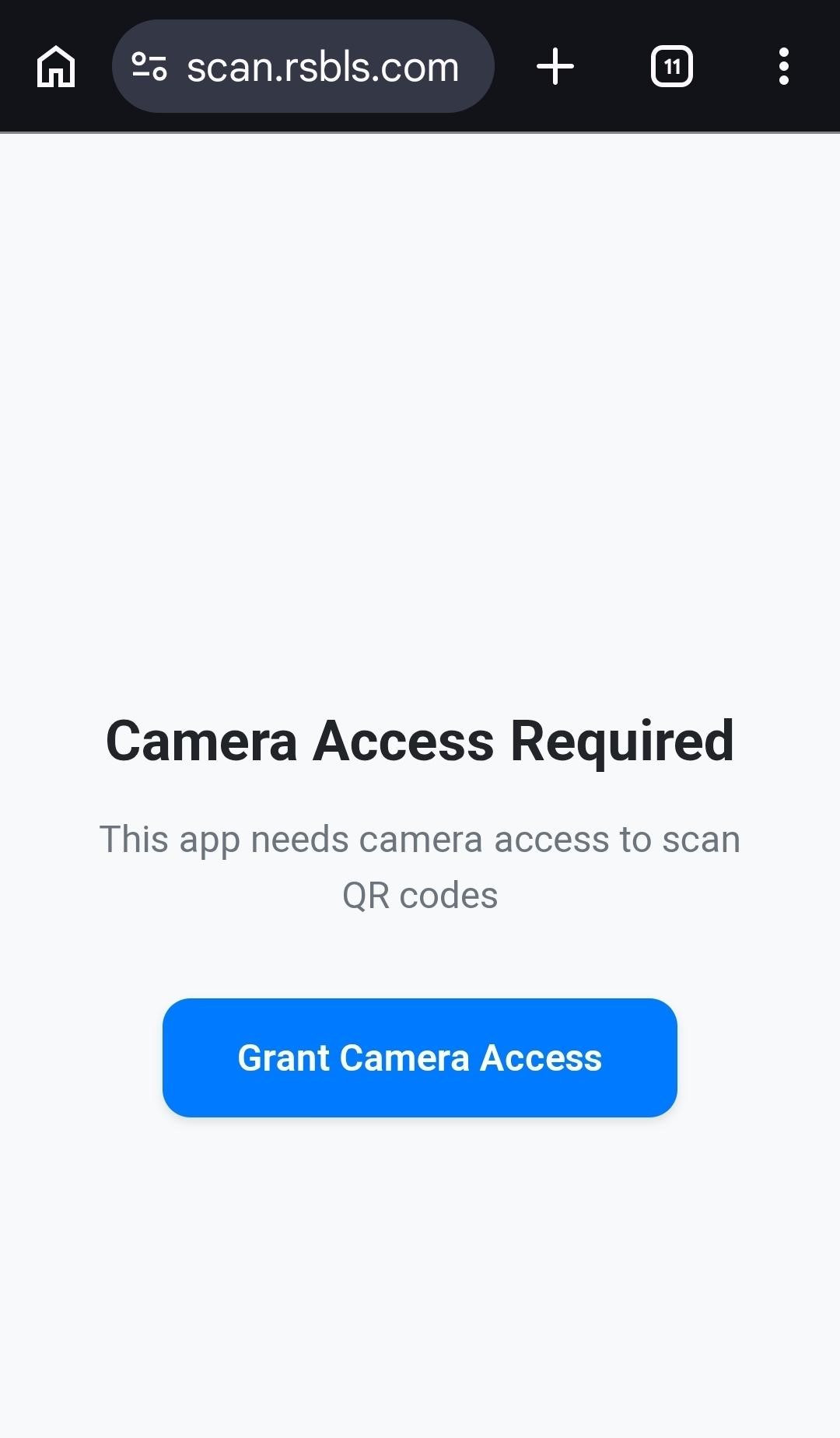
You will need to Grant Camera Access to start.
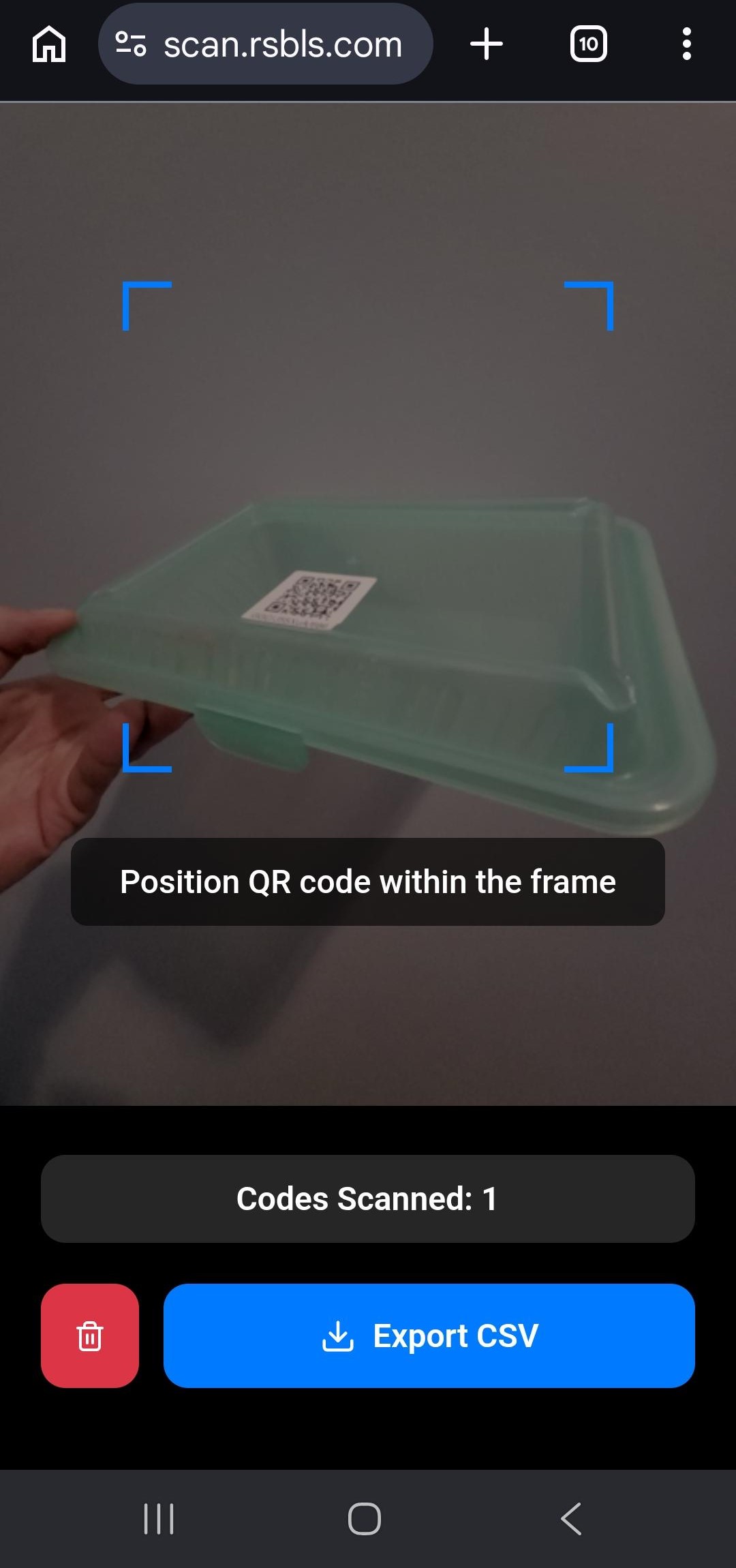
1. Scan Container QR Codes
Simply, start by scanning the QR codes on the containers which need to be retired. You will see a green success message after each container scan.
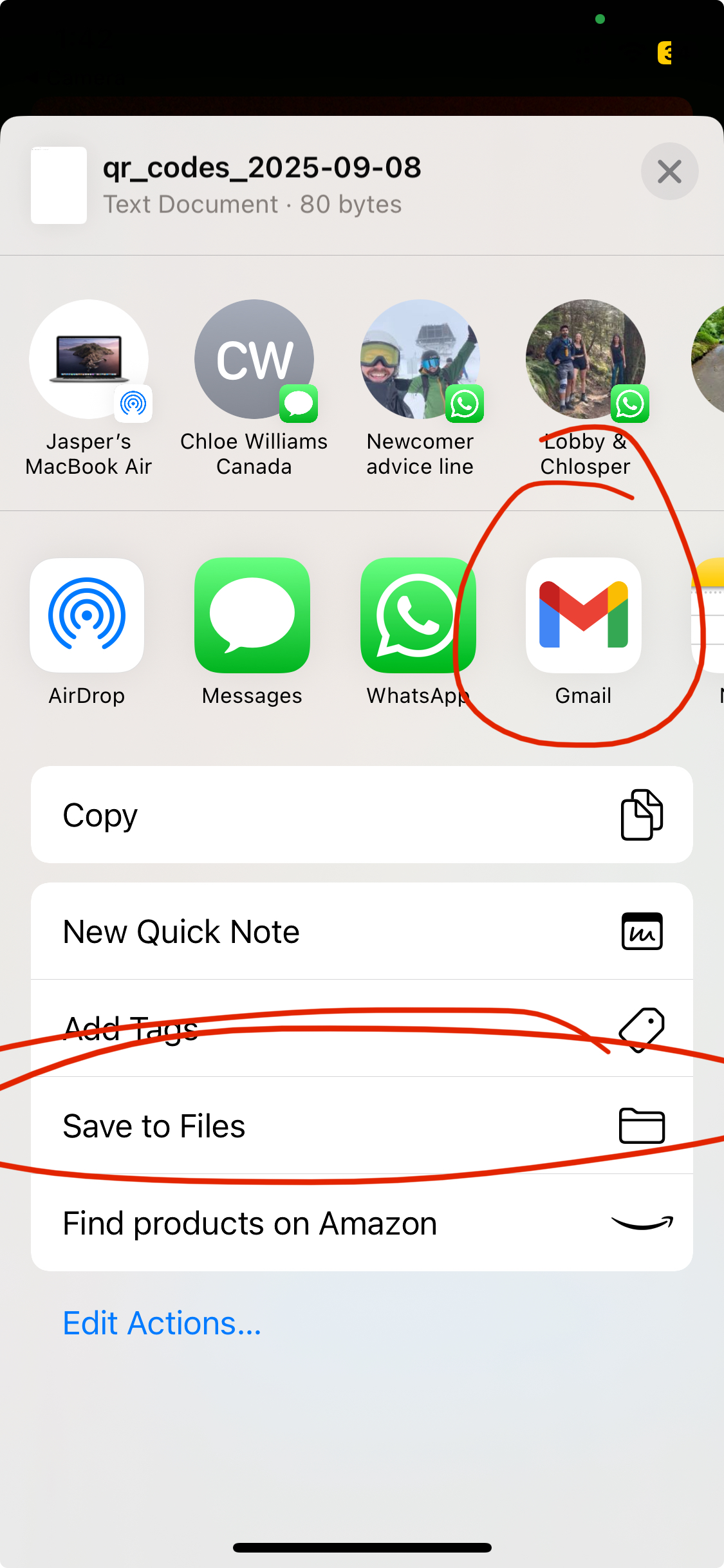
Once you have finished scanning containers, click 'Export CSV' . You will be presented with options for what to do. You can email this file using your email app or you can save to 'Files' to save it to your phone.
Clear & Start Again
If you ever need to start again you can do so by tapping the Red button with a trash icon to clear all scanned containers.
3. Email the CSV to your Reusables or Upload to the Operator Portal
Once you have scanned all the containers you wish to retire, just email us the CSV file(s) at support@reusables.com with "Retire Containers" or something similar in the subject line. Do not worry if you need to send multiple CSV files and the same Container QR Code appears in several of them - we can handle this on our side.
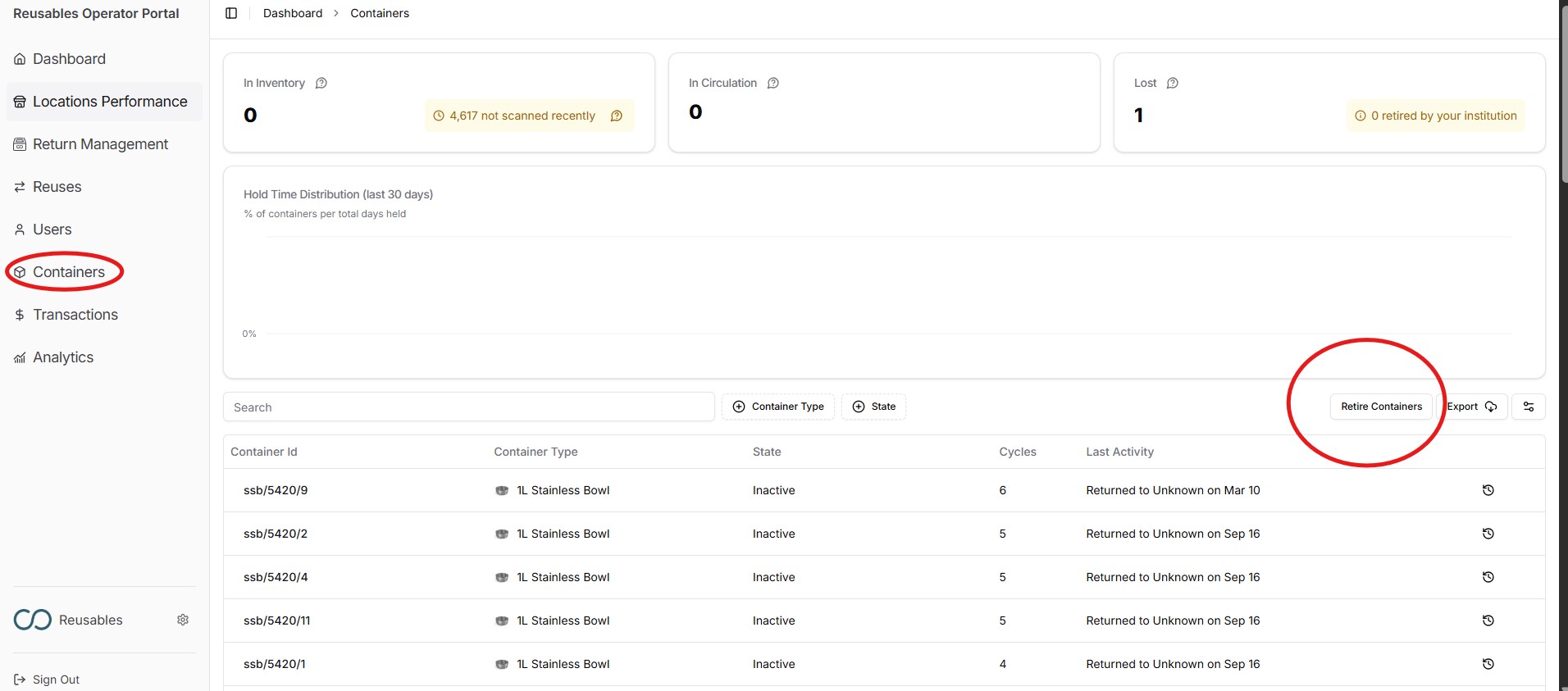
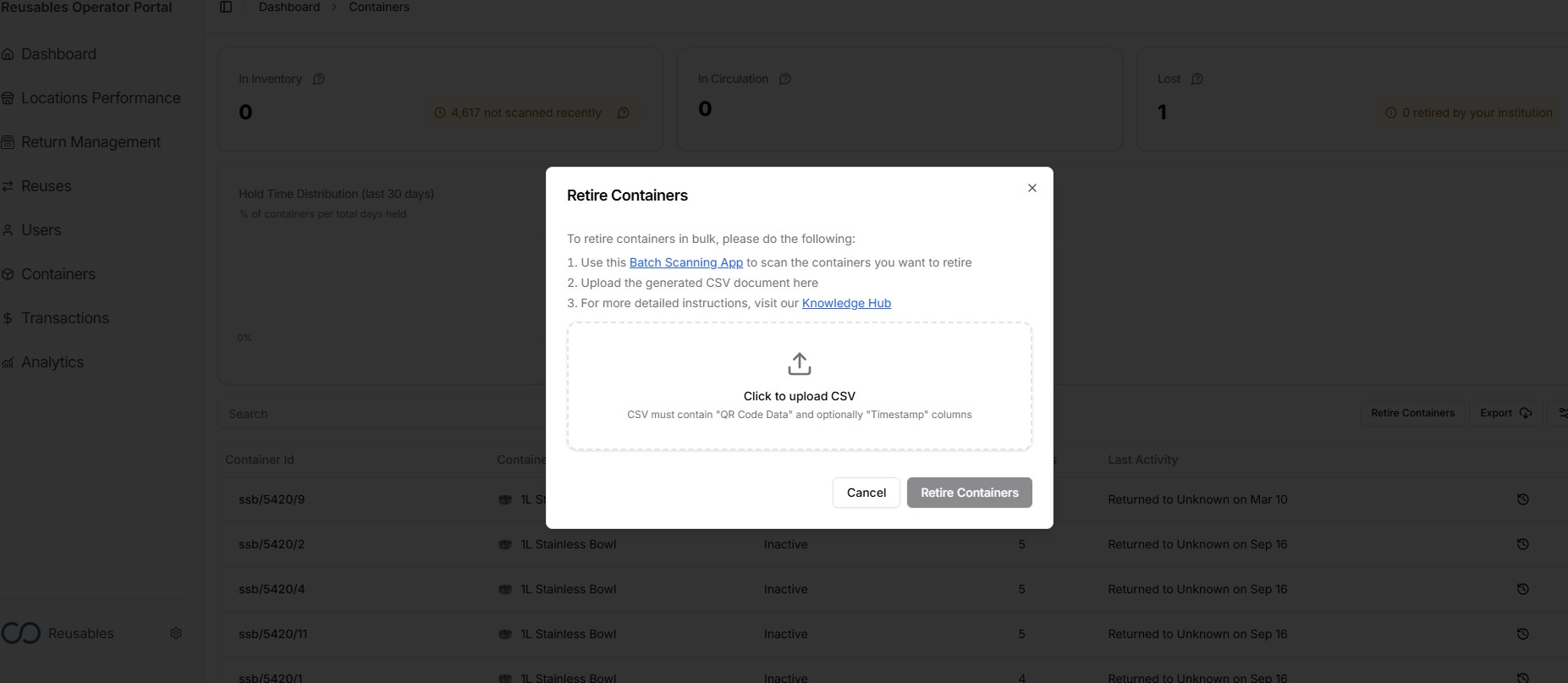
If you have Operator Portal Access you can go to the "Containers" tab, and click on "Retire Containers". You will then be given the window to upload the CSV file of scanned containers from your saved files.
That's it. If you have any feedback or suggestions for improvement then please send them to support@reusables.com