
Reusables.com Quick Troubleshooting Guide
Troubleshooting Steps for Smart Return Bin (SRB) Issues:
Red Light:
The liners are full. Empty both liners and re-install
If the red light doesn't return to white after reinstalling the liners, ensure the liners are sitting flat and square inside the bin.
If the red light still doesn't go white, email support@reusables.com with your location, SRB# (visible from within the back hatch), and as much detail in your observations as you can.
Smart Return Bin Door Flapper Not Opening/Closing
Unplug power from the wall or back of the bin and manually check if there’s any blockage. Clear it if so.
Plug back in to power and the door should open/close.
If a soft reboot does not work
Plug the SRB in and power on. Remove the liners from the SRB
Look up from inside the SRB, locate the latches circled in red
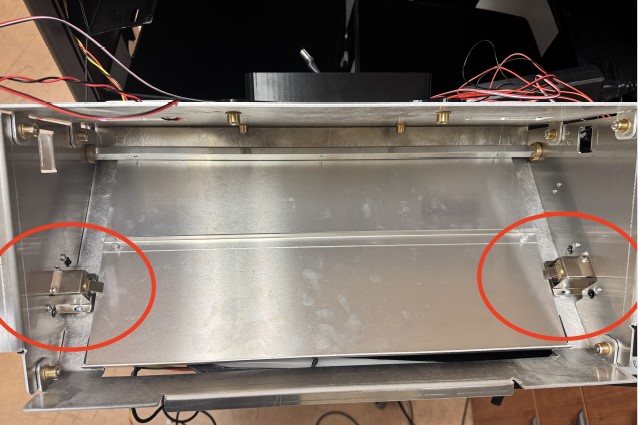
Carefully hold the door with one hand while poking the tooth of one latch back into its body. This will allow the flapper to release and fall down into the body of the SRB.
Test a container scan a few times. If the door opens and then closes each time, it's fixed!
Orange Light while door is closed:
Unplug power from the wall or back of the bin and plug back in. The orange light should turn white again.
If the orange light still doesn't go white, email support@reusables.com with your location, SRB# (visible from within the back hatch), and as much detail in your observations as you can.
Orange Light while door is open:
Unplug power from the wall or back of the bin and manually check if there’s any blockage. Clear it if so.
Plug back in to power and the door should close and the orange light should go white.
If the orange light still doesn't go white or the door doesn't close,
Smart Return Bin has white LED light, but a few spots of red
· Normal operation. This means data is being transmitted
If any of the above steps fail to fully resolve your Smart Return Bin issue (door closed, light white), email support@reusables.com with:
· Your Smart Return Bin location
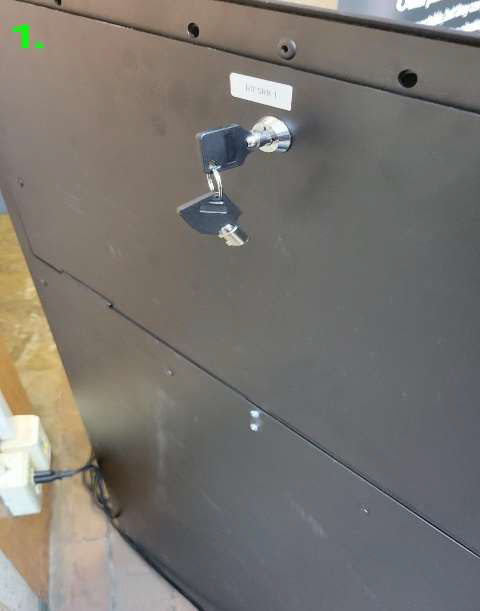
· SRB # (visible from inside the back hatch)
· A description of the Issue with any pictures or video that will help us
· Steps you've taken to resolve as much detail in as you can
Troubleshooting Steps for Checkout Device and Smart Return Station (SRS) Tablet
Tablet/Checkout Device is out of battery
Please charge the phone to 20% and open Reusables checkout app upon restart.
If the phone does not start up after charging, hold the small power button on the side of the phone/tablet
Ensure phone does not fall below 20% battery level
Check the power outlet with another device to ensure proper power is being sent to the device
Tablet/Checkout Device not connecting to Wi-Fi
Check that the correct Wi-Fi network is selected
Check with internal IT department there are no known outages
Contact Reusables Urgent Support Line if no resolution is available
support@reusables.com or 1-844-655-6486
Tablet/Phone is not scanning QR codes
Check that the camera is facing the right way
Check Zoom level of camera
Contact support@resuables.com or 1-844-655-6486 and advise of the checkout device affected we will adjust the zoom level accordingly
Reusables Checkout App closed
Contact support@resuables.com or 1-844-655-6486 and advise of the checkout device affected.
Any Reuser issues should be directed to support@reusables.com or directly through the app by clicking on “Get Support”.
The key information to provide is:
Reuser ID or Phone Number on account
The date and approximate time of issue (for container scanning issues)
The checkout and/or return locations in question
A brief description of the issue needing to be resolved.