Getting to Know the Operator Portal
Dashboard
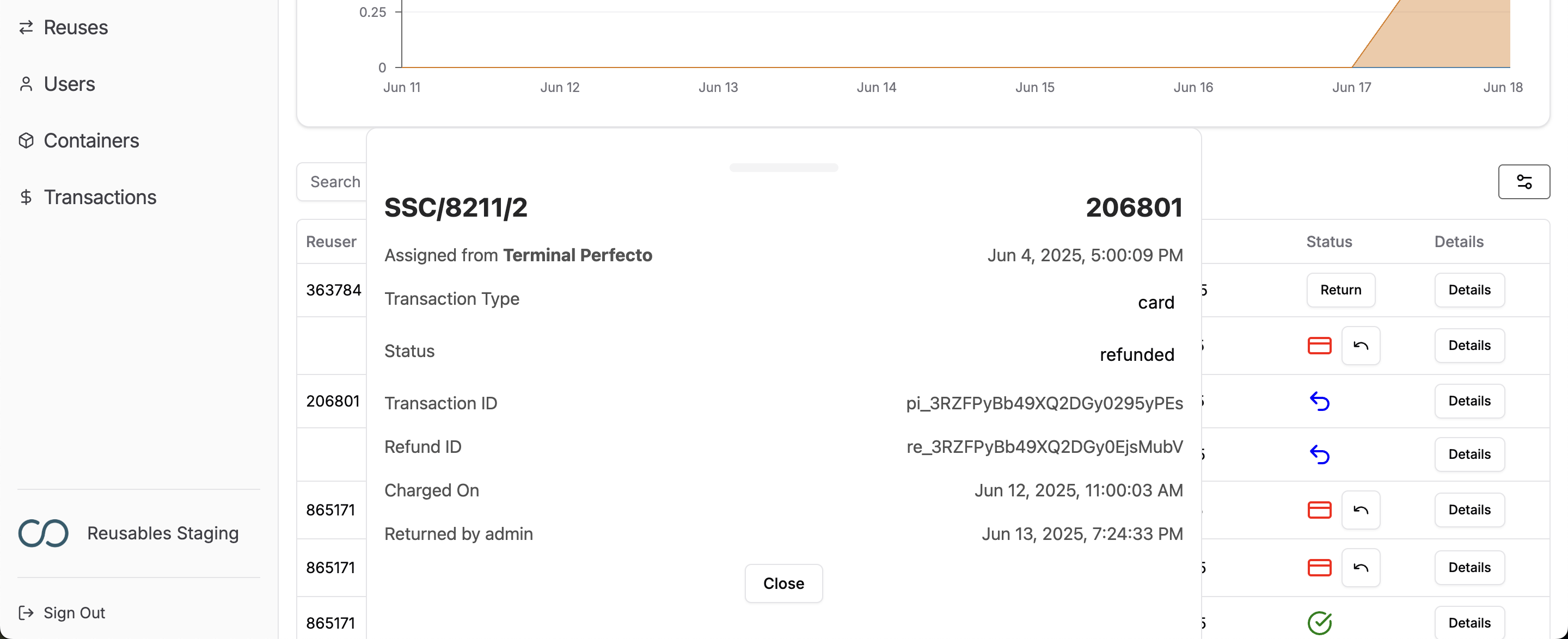
Come here as often as you need to get an overview of how your program is performing at a glance.
Total Reuses - How many times a container has been borrowed and returned
Return Rate - Calculated by looking at the number of late returns that are still outstanding
Registered Reusers - Total users, split by how they signed up to Reusables
Container Inventory Management - See where your containers all are
Environmental Impact - Use the tool-tips next to the title to learn more about each metric
Return Management
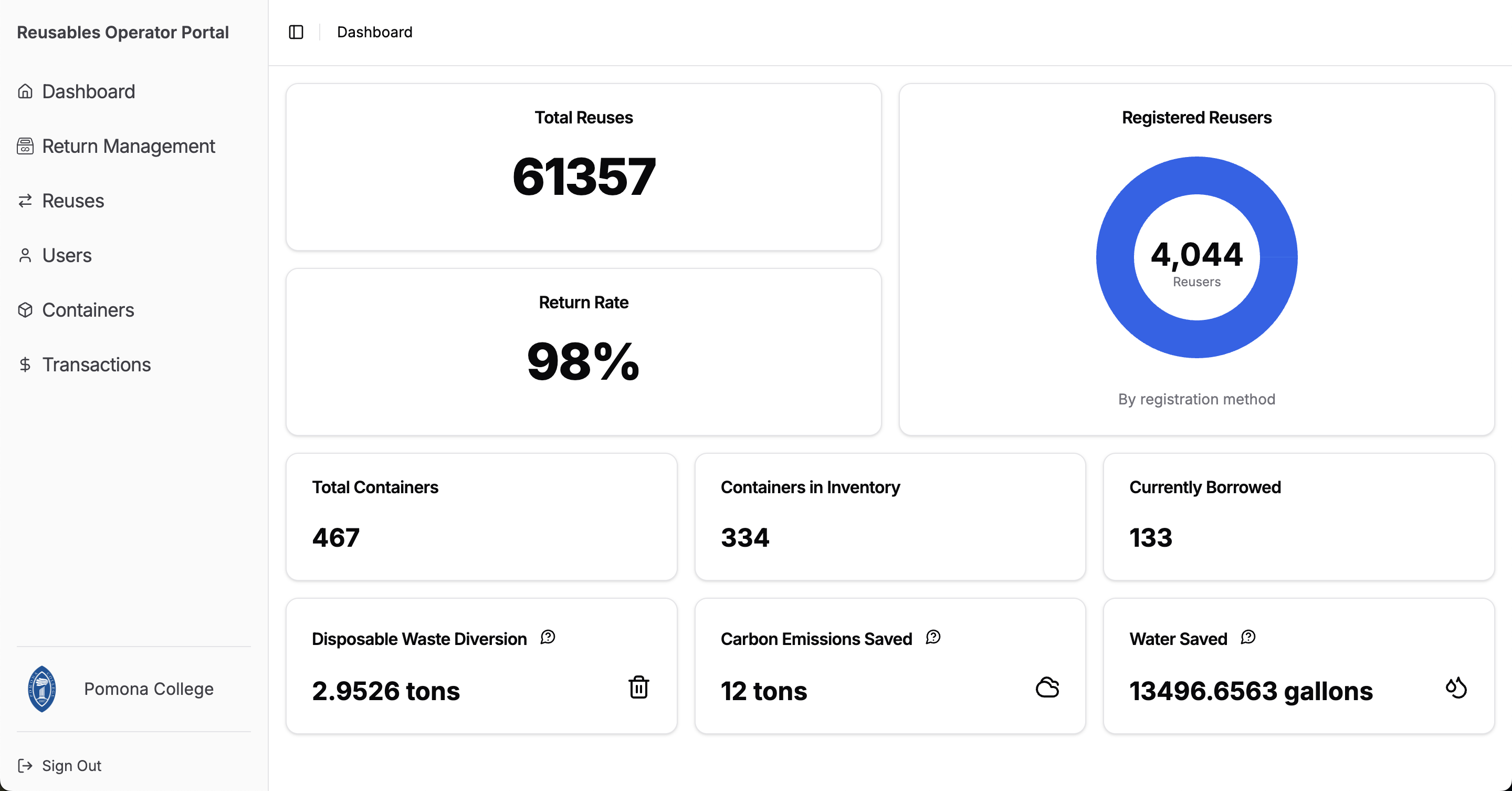
Come here to see how your Smart Return Bins are performing. Use this page to see how many containers are being returned to each bin and to monitor fill levels.
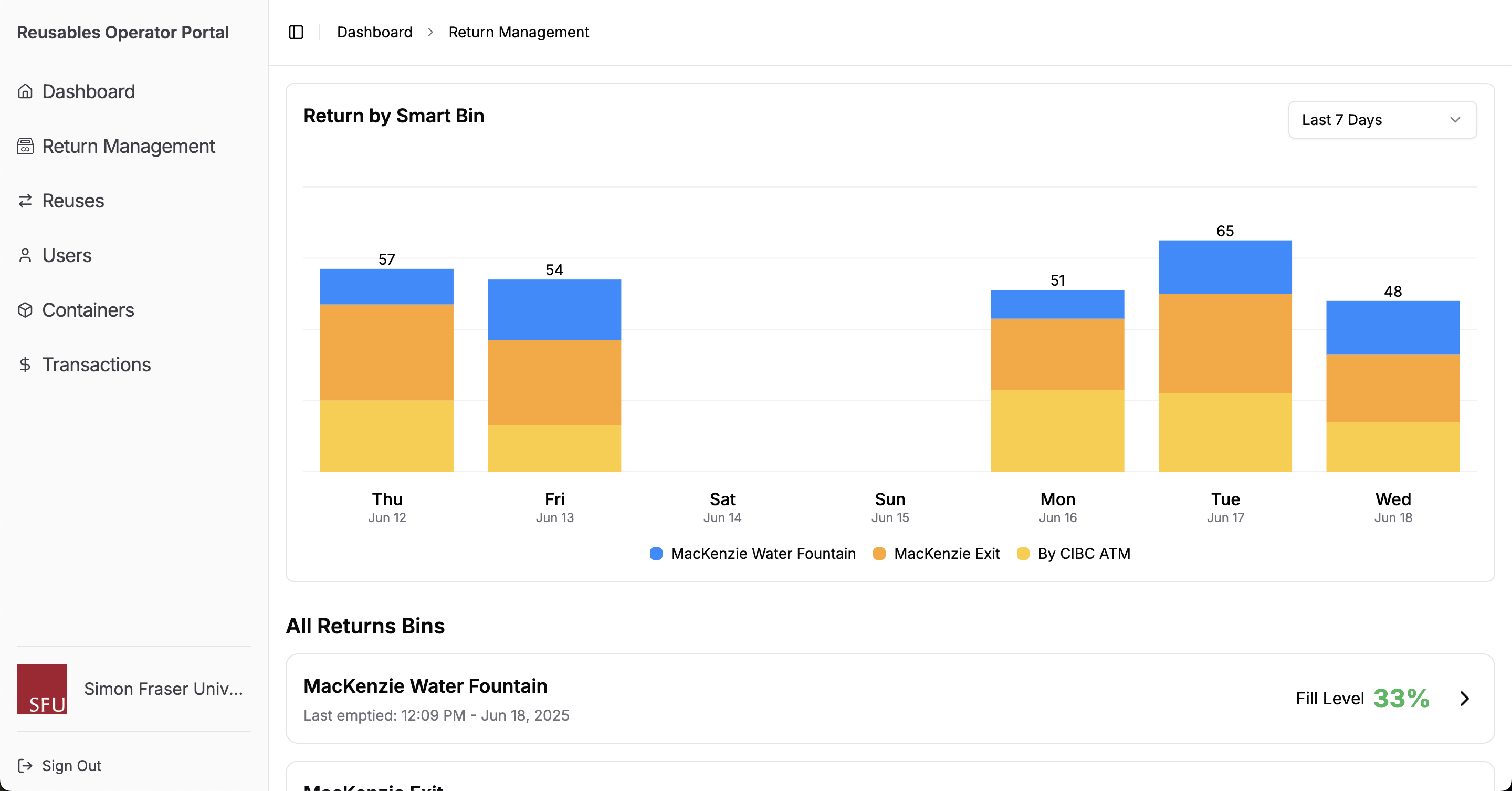
You can click into a Return Bin to see the trends in fill levels and to inform when to empty each bin.
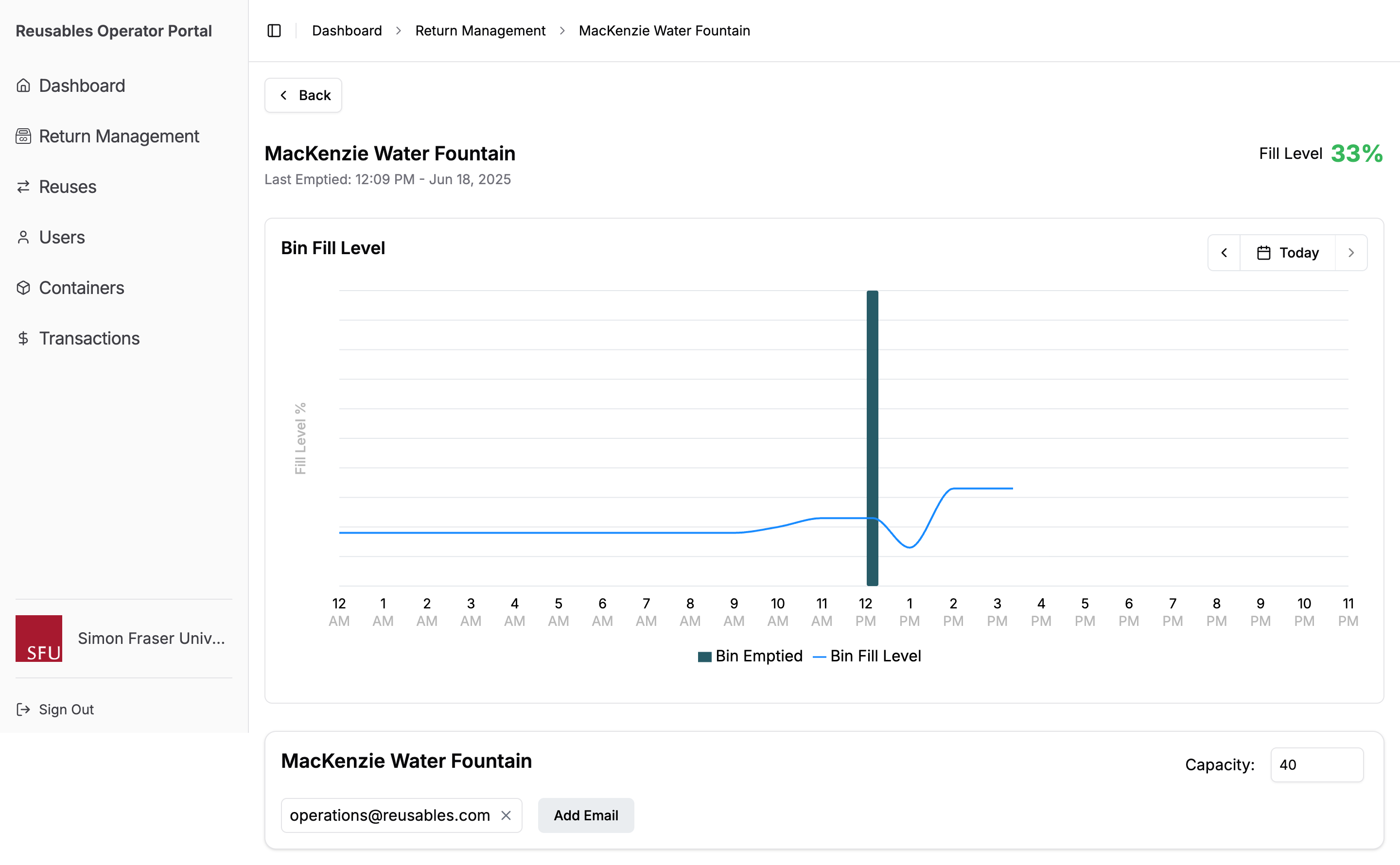
From here, you can also add email addresses to receive Smart Bin Capacity Alerts. This allows you to receive an email when a bin hits 80% and then 100% fill level.
Reuses
This view shows all checkouts that have happened and allows you to filter the view by where that container is in the reuse lifecycle.
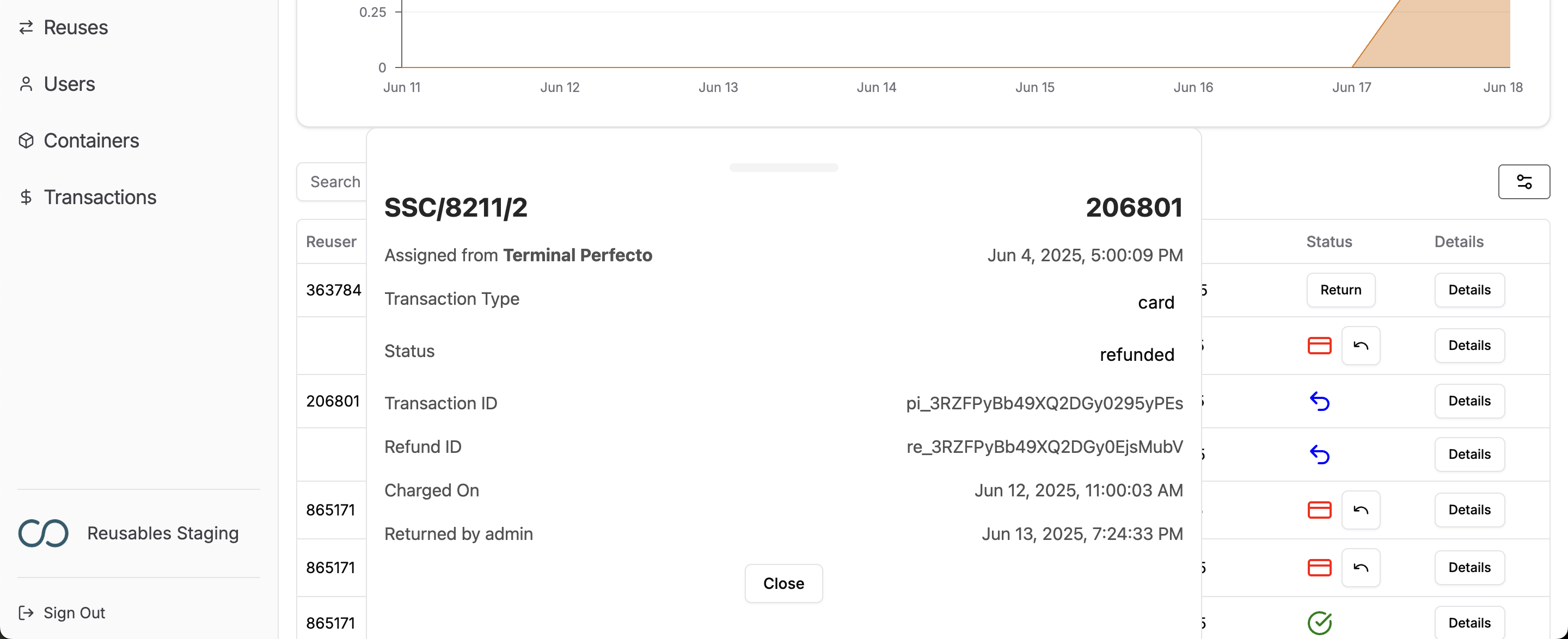
What the status symbols mean
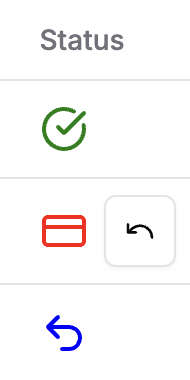
Green Tick = Returned successfully
Red Card = Not returned yet and payment method has been charged
Black Back Arrow = Initiate Operator Return
Blue Back Arrow = Charge refunded
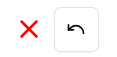
Red X = Failed to Charge
Users
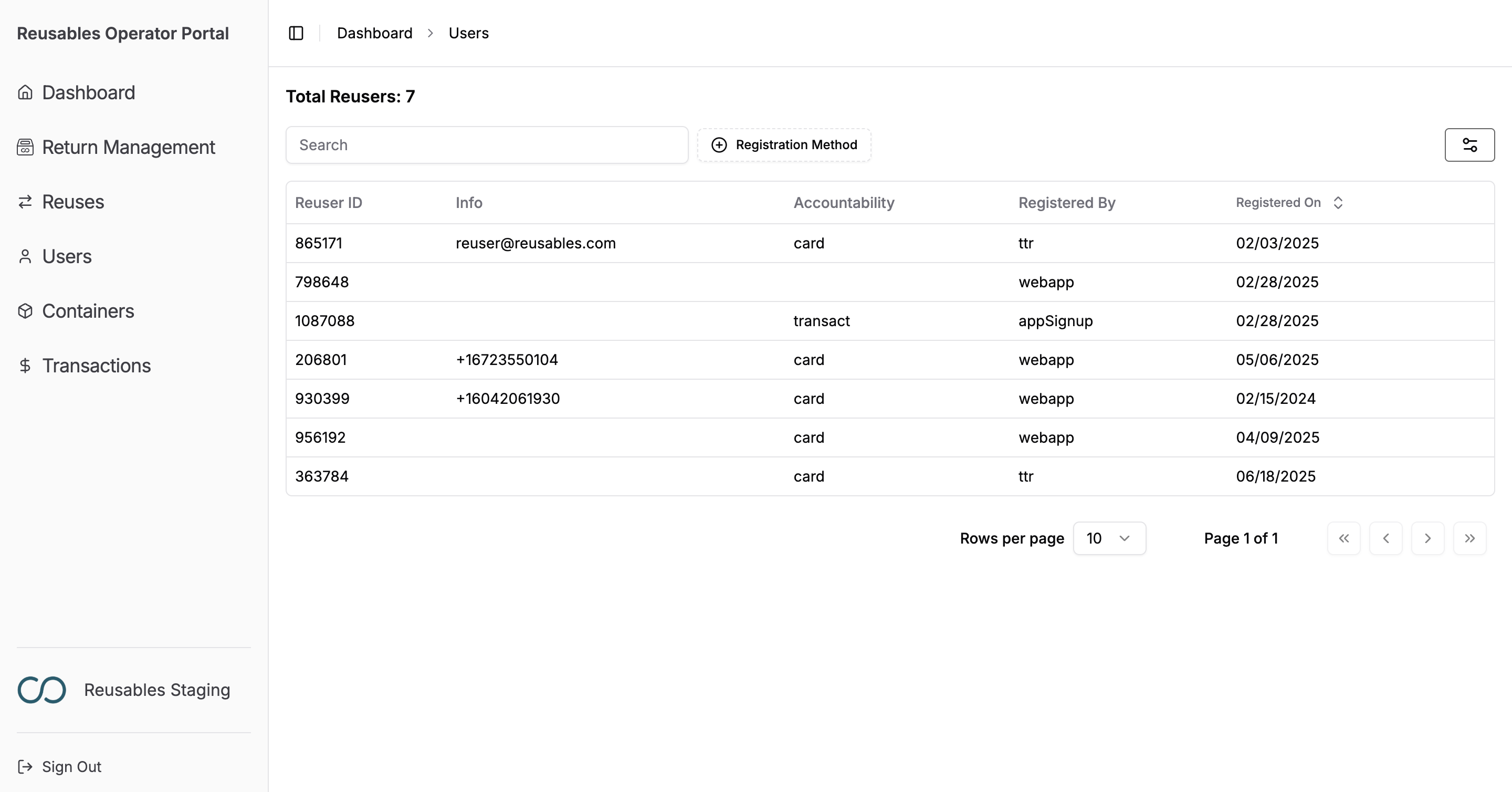
From here you can see all of the users who have engaged with your Reusables program. You will have different levels of information, depending on how someone registered for the program.
e.g. users who have only engaged in the program by tapping their credit/debit card have no contact method available.
Containers
From here you can see all container types that you currently have in use. You can click on each container type for more information.
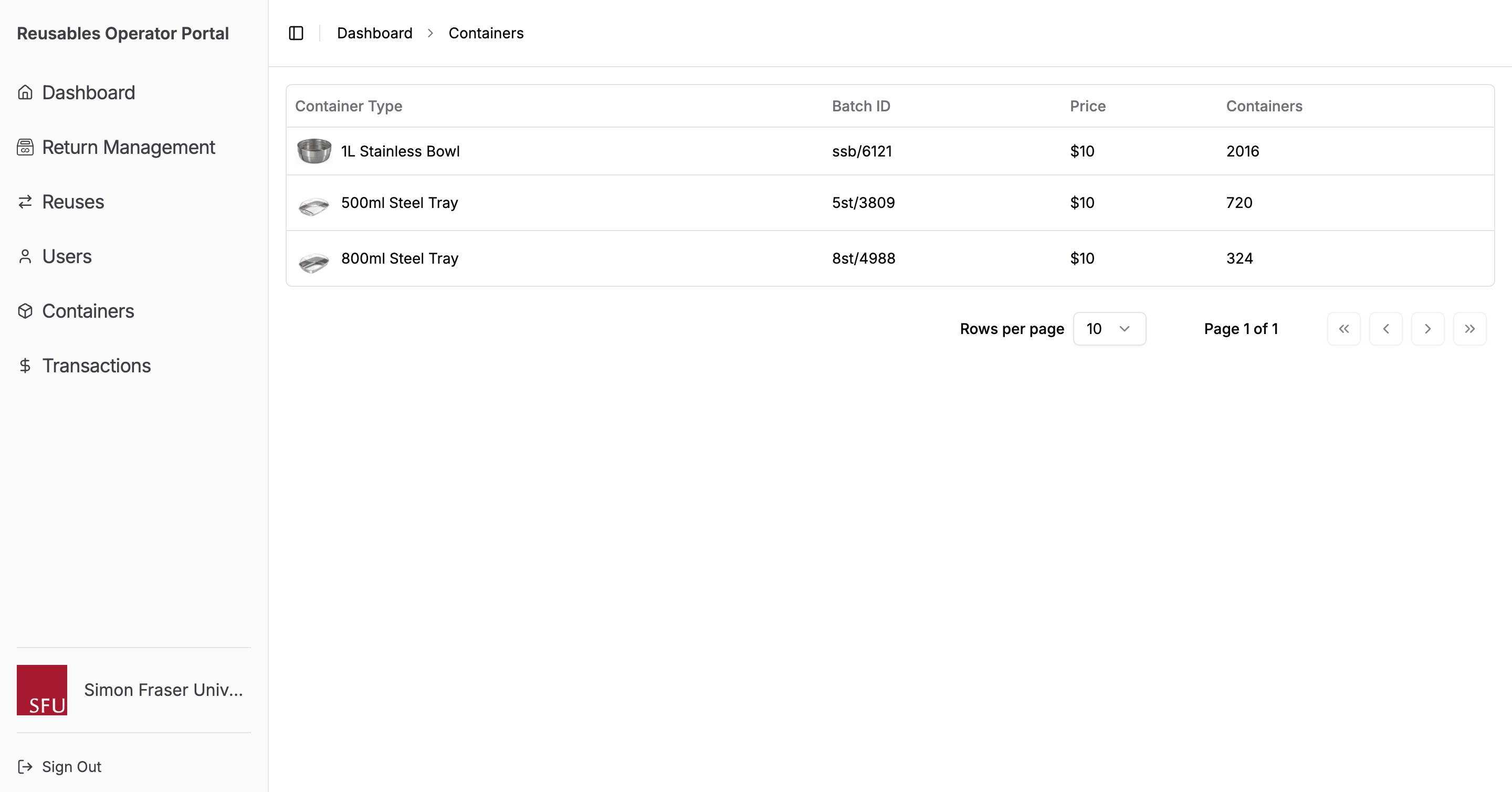
From here you can see every container and it's state as well as information about it's use history.
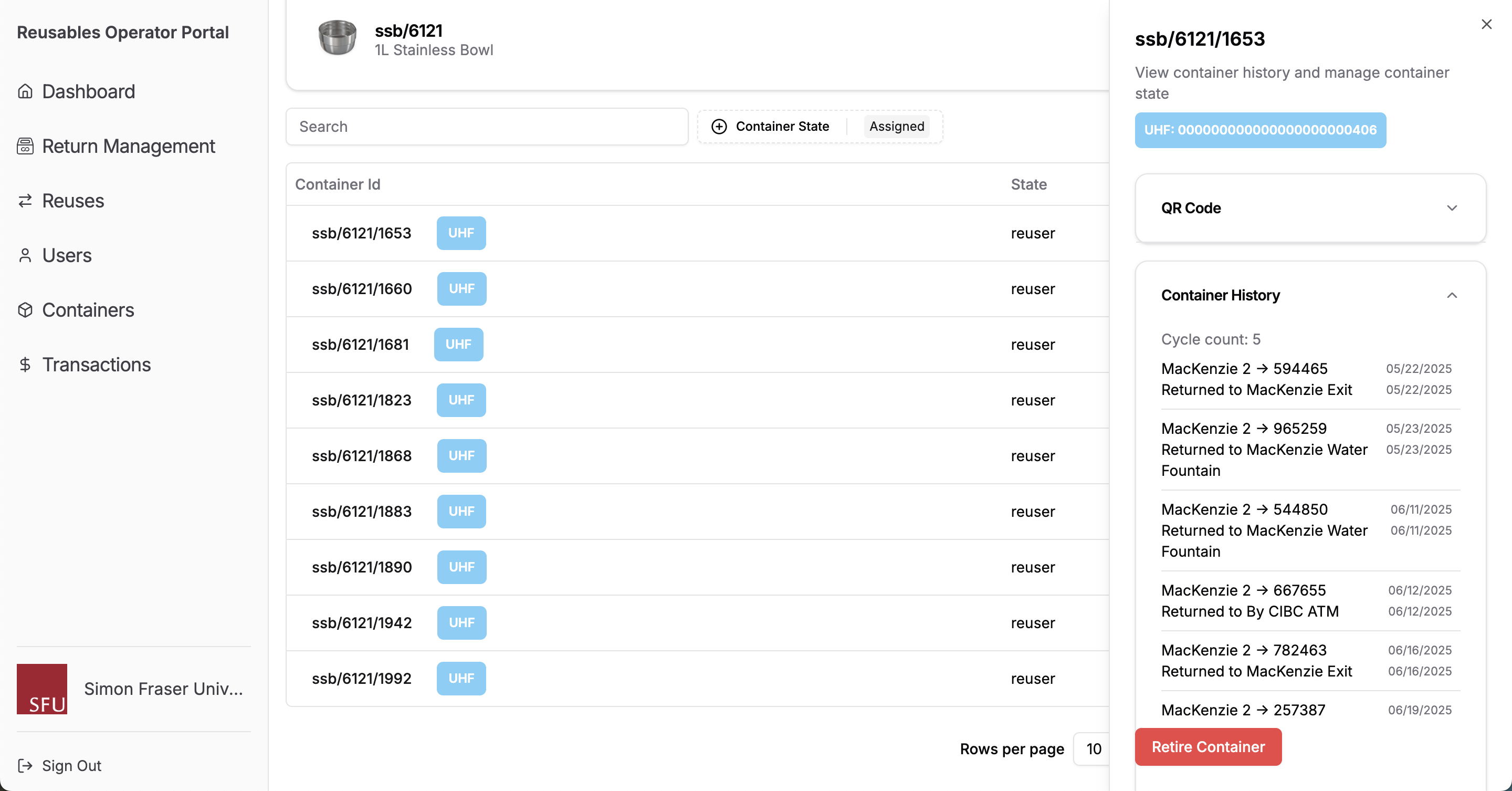
Has a container become damaged or reached the end of it's service life? You can remove that container from service by clicking 'Retire Containers'.
Transactions
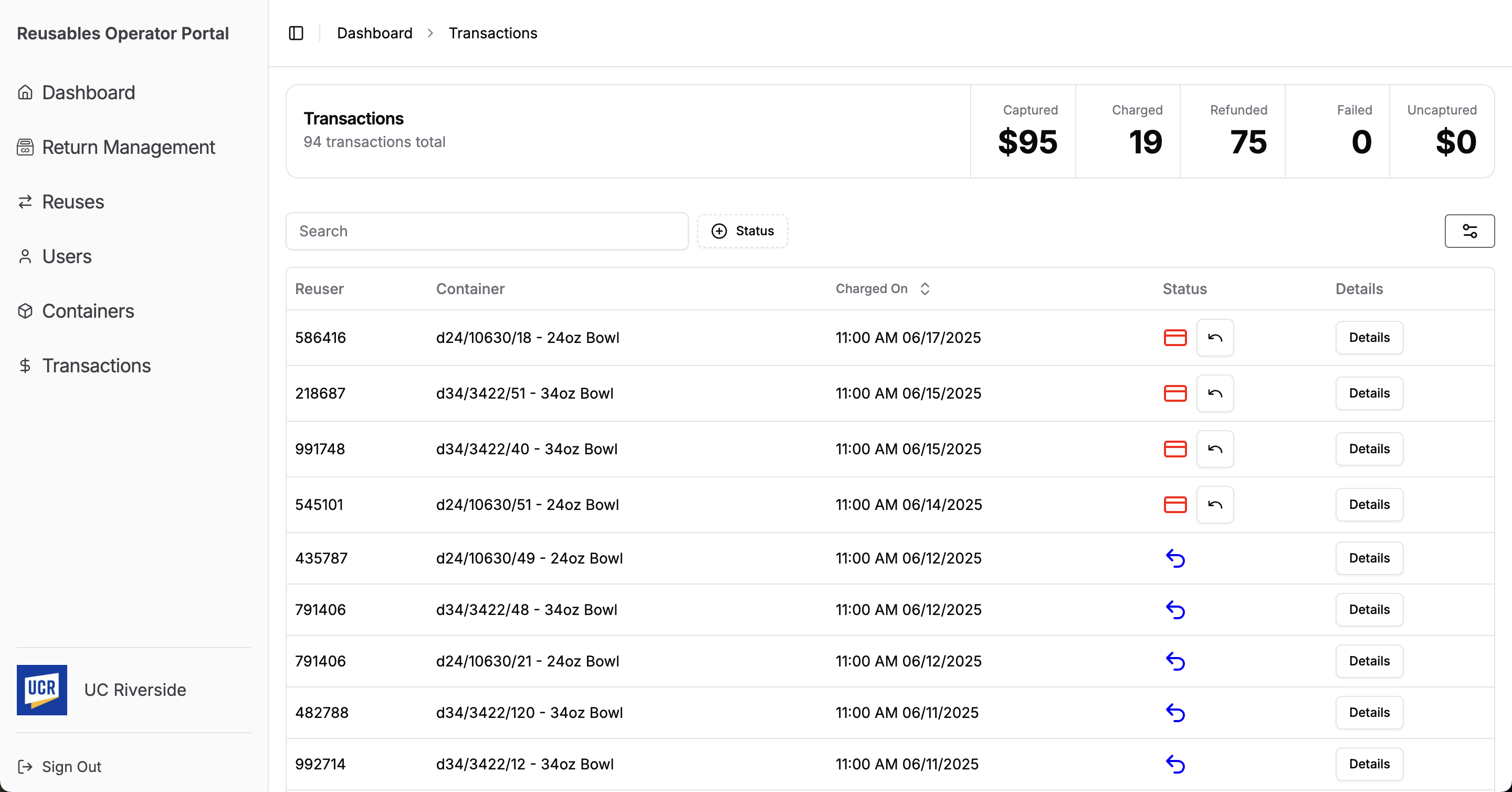
You can tap on 'Details' to see more information about each 'Reuse'. The information you see will differ, depending on where that container is in the Reuse lifecycle.