
Conduct a Physical Inventory Container Count
To better understand what you need, you have to understand what you have. Below are instructions on doing a physical inventor count using the container QR codes. This should be done to tags that have been applied to containers only.
Begin Scanning Containers
This can be done easiest on a mobile device.
Access the batch scanning app here; https://scan.rsbls.com

Or scan this code on your mobile phone (this feature works best on iPhones).
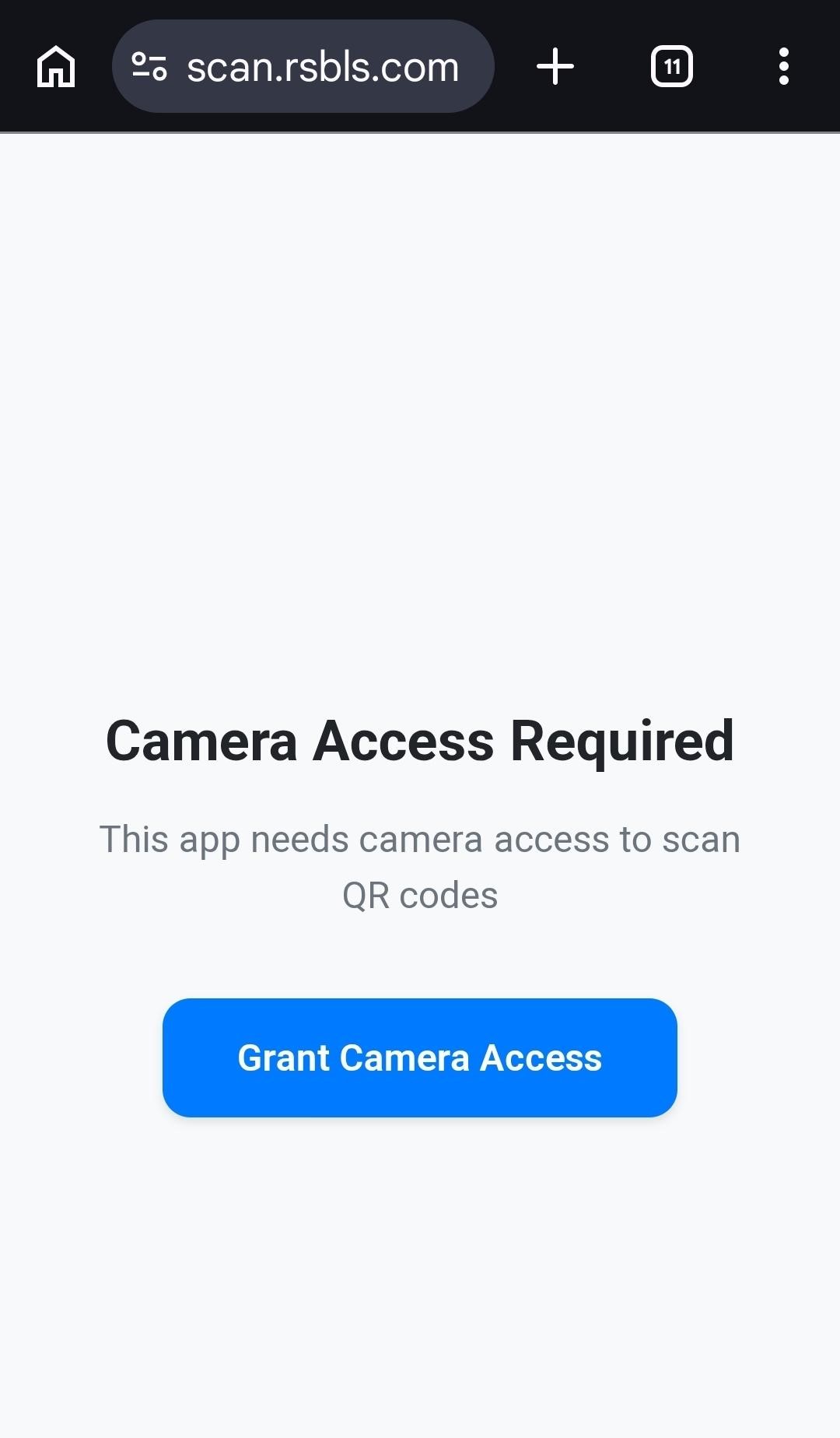
You will need to Grant Camera Access to start.
1. Scan Container QR Codes
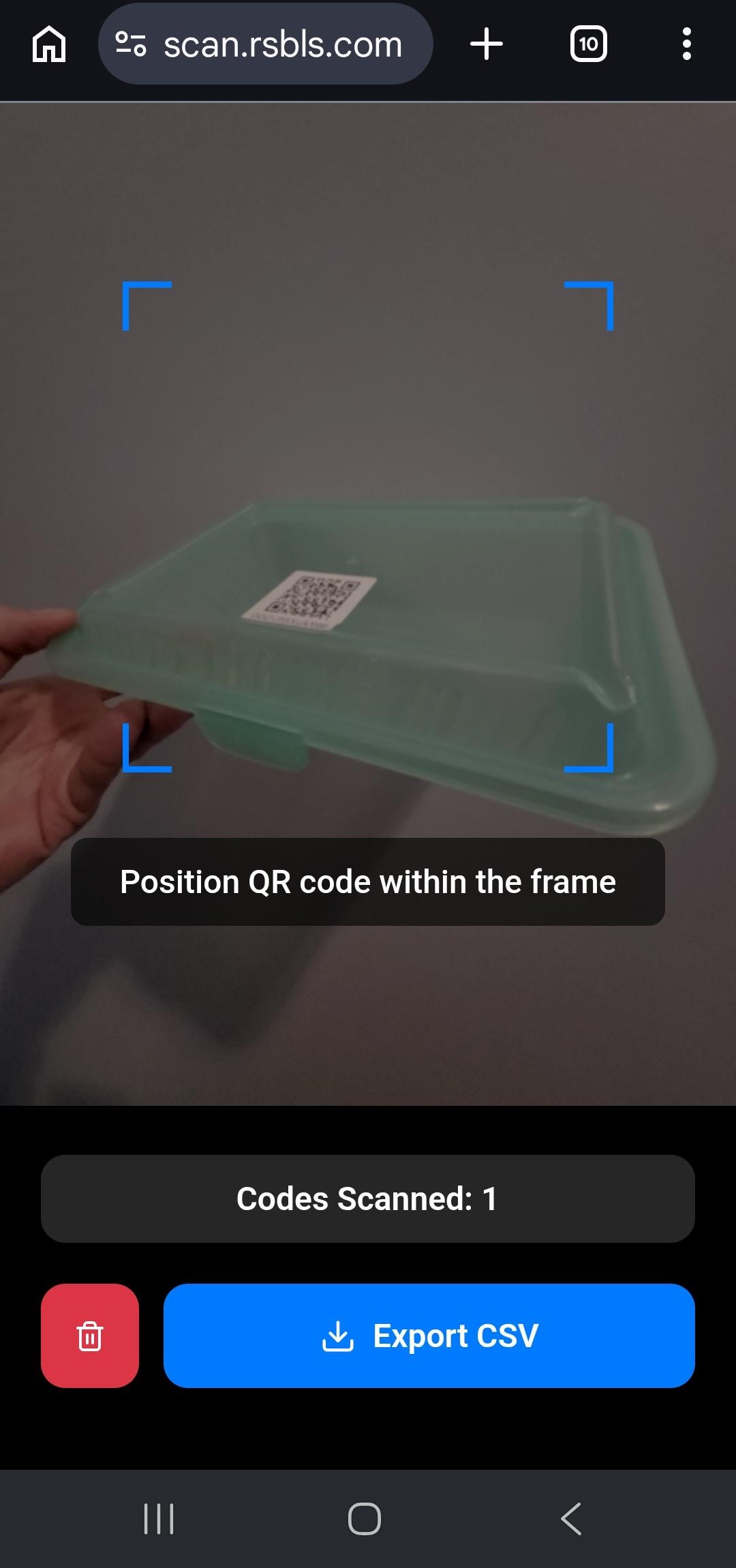
Simply, start by scanning the QR codes on the containers which need to be counted. You will see a green success message after each container scan.
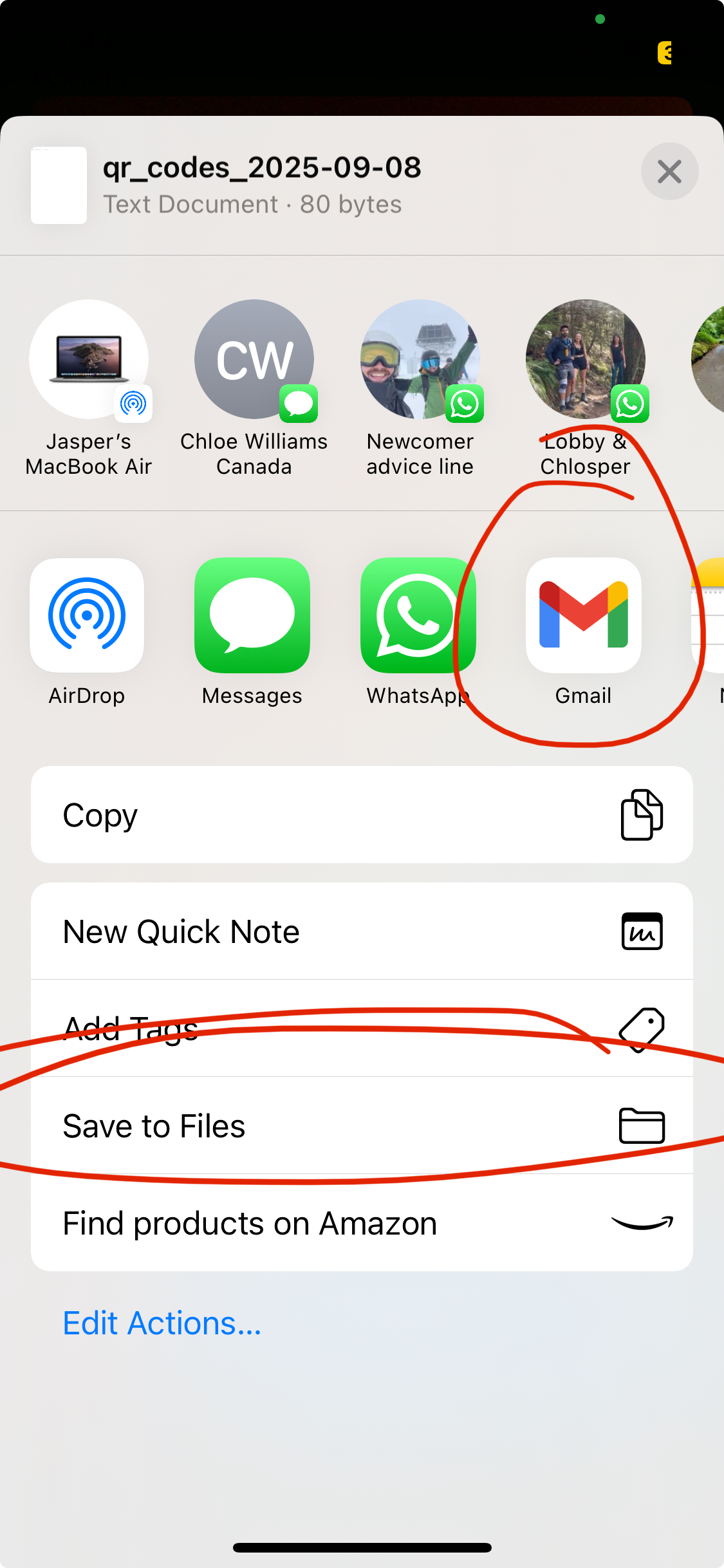
Once you have finished scanning containers, click 'Export CSV' . You will be presented with options for what to do. You can email this file using your email app or you can save to 'Files' to save it to your phone.
Clear & Start Again
If you ever need to start again you can do so by tapping the Red button with a trash icon to clear all scanned containers. **Note that the app will NOT save your previous count, so it is best to do this process in manageable batches to avoid confusion or errors**
3. Email the CSV File to the Person In Charge of the Inventory Count
Once you have scanned all the containers you wish to retire, just email the CSV file(s) to the appropriate person in charge of the inventory count with REUSABLES INVENTORY COUNT in the subject line.
At this point your Institution leader responsible for inventory will manage the next steps.
If you have any questions or feedback please send them to support@reusables.com